Powering a Reolink Smart Doorbell using a standard UK doorbell circuit
by

Stuart Holland
So I recently, finally, got a smart doorbell. And spoilers: I also got it working. I hadn’t done this before, as you might expect based on my smart home priorities, Ring and other similar options don’t really cut it for me. A cloud subscription for my doorbell? Not gonna happen. Batteries for my doorbell are also more trouble than a smart doorbell is worth to me.
I knew my tech stack supported the actual capabilities to make a smart doorbell work, I just needed to find a smart doorbell that let me actually talk to it locally. And in the end, I didn’t even have to do that research, because Home Assistant announced that Reolink joined the “Works with Home Assistant” program, and their smart doorbell was on the list of supported devices. That meant it would work with my Home Assistant setup - great! Research done.
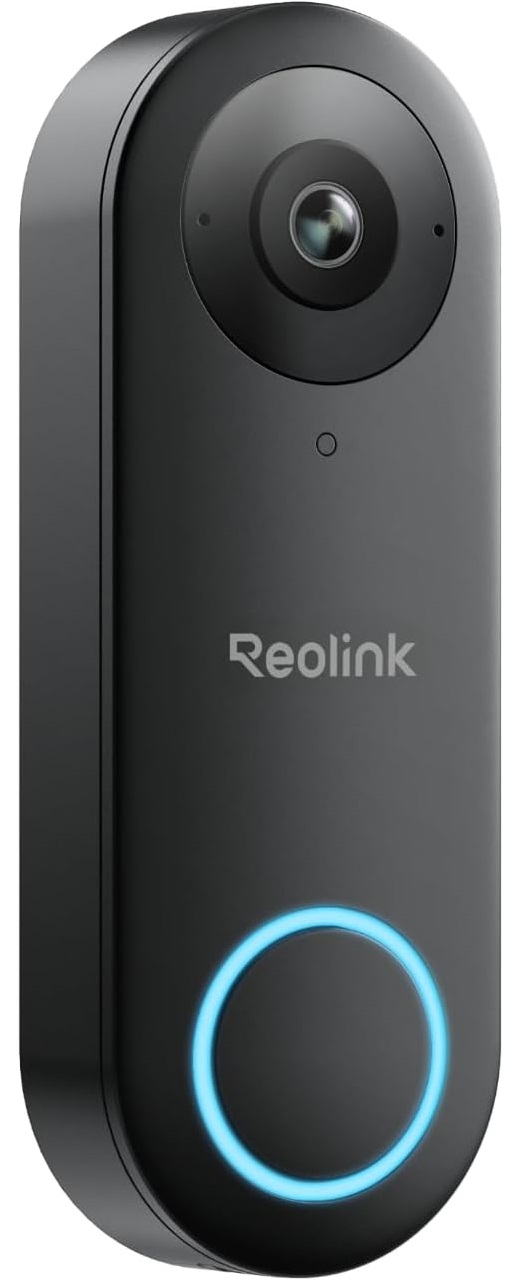
I bought a Reolink 2K 5MP HD Wi-Fi Doorbell. It looks like this:
I was confident in the software side due to the Home Assistant compatibility. But the hardware side, specifically the power, was a sticking point. I had an old style UK doorbell, a simple press button that completes a circuit and causes a chime in my hallway to ring (and ring annoyingly quietly at that). Can that be made to power one of these Reolink doorbells?
If you look a the documentation, the answer is… maybe. It depends on the electrical setup of your existing door chime. So I tried it, using the jumper cable provided with the doorbell. Two failed attempts later (one with a constantly running chime, the other with no power), I thought it wasn’t going to work. I thought the transformer in my chime must not be providing enough power for the doorbell. Helpfully, the documentation’s terminology about the connections and the terminology used by my chime did not match (the following is from the doorbell manual):
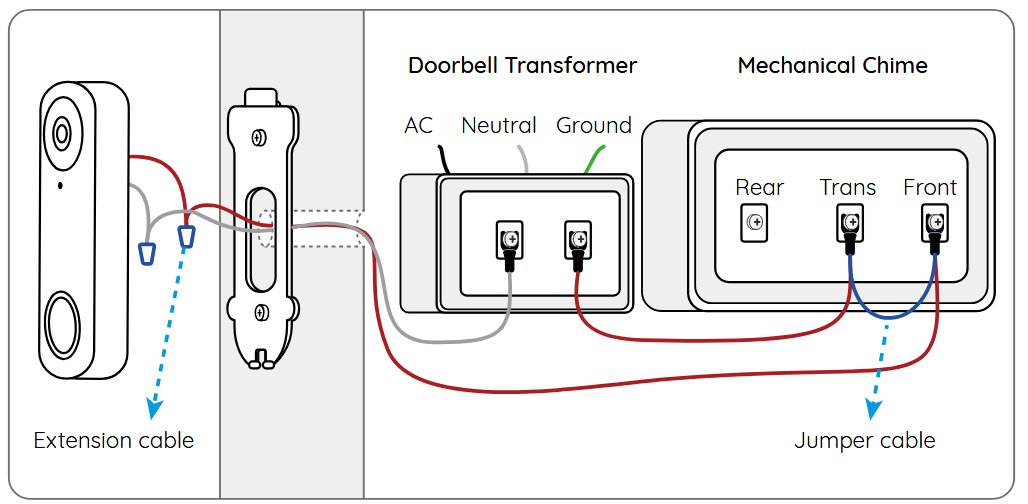
Then, as is the beauty of the internet, I found a reddit thread from two years ago where someone else was trying to do something very similar. In the comments, someone else had an extremely similar electrical setup to mine (though not exactly the same, because apparently there are infinite ways to do this). A poster advised how to use the jumper cable in that situation, and it was a configuration I hadn’t tried.
Some other commenters (on other threads - I was doing a lot of reading around) suggested using a multimeter to verify that you had the power you needed and were connected across the pins you should be. I don’t know why I didn’t think of that - I have a multimeter, so I tried it out!
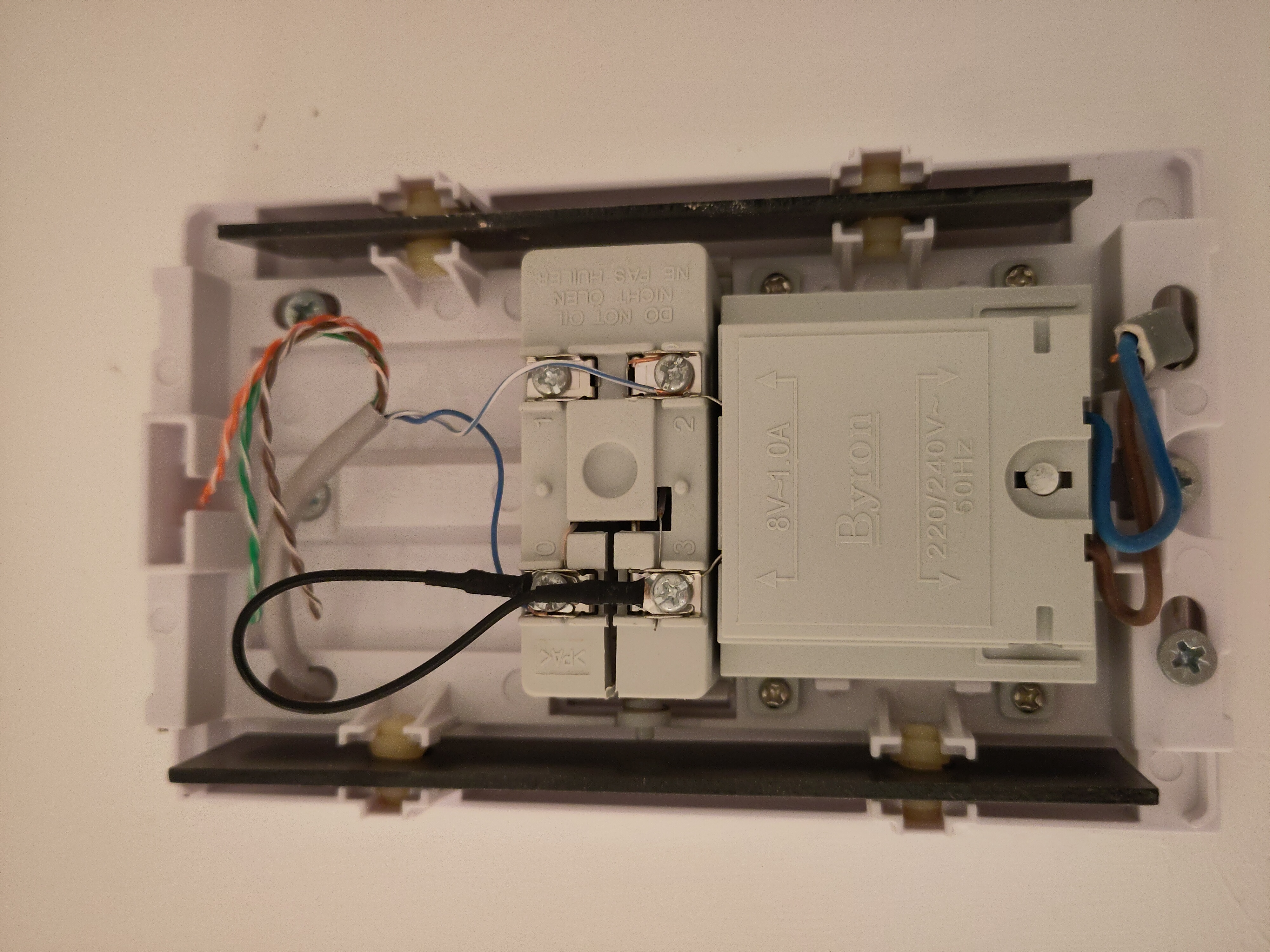
And voila! It worked! And because I want you, dear reader, to be able to do this too, here’s what it looks like (click to see larger):
If you’re doing anything like this, be sure to switch off the power at the breaker/junction box! (And verify that it’s disconnected by ringing the doorbell while it’s switched off and making sure it doesn’t ring. My doorbell is on the circuit with my lights, not the sockets.)
The jumper is the black cable from port 0 to port 3, bridging the connection across the doorbell circuit so that the smart doorbell is always fully powered by the transformer. The transformer is connected to the mains on the other side. This means the chime is now bypassed.
You might notice in the picture above, and I thought it was interesting and surprising, that my doorbell appears to be connected using an ethernet cable, just using one of the pairs and leaving the other three pairs tied off. I suppose if you have ethernet lying around already on a building site, it’s a convenient cable for running low voltage power when building a house.
Also, according to my multimeter, despite the transformer saying 8V, it read 15V across that connection. Which is fine with me - I think that’s more in the range of what the Reolink doorbell needs.
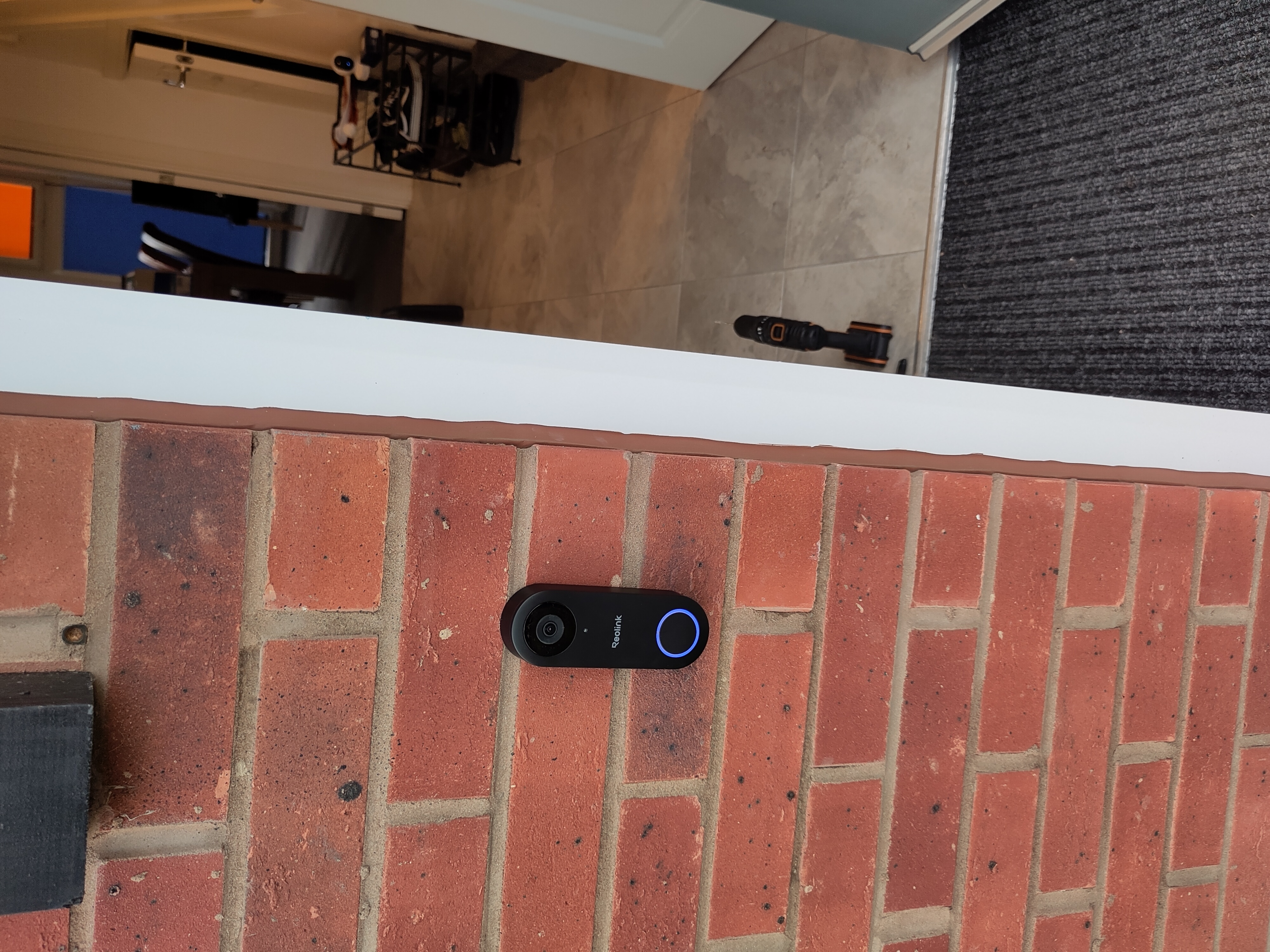
And that’s how I got it powered! The Reolink doorbell was physically larger than my old one, so I had to drill one new hole for it (and used the included wall plug). And the Home Assistant software side setup was nice and straightforward! And here it is, up and running at my front door: